
STL Browser, part 2: print notes, 3MF print details and ZIP downloads
A little while ago I wrote about STL Browser, the small web app I built with Claude Code to put every STL and 3MF I own in one searchable grid. Using it every day since then turned up a list of things I wanted next. This post covers what we added: print notes, print details read straight out of 3MF files, ZIP downloads for whole models, folders and kits, a start/stop script for running it on a PC, and finally moving it onto my Docker host with Portainer.
Same setup as before: I set the requirements and tested each step against my real library, and Claude wrote the code, the tests and the docs. The updated source is at the end.
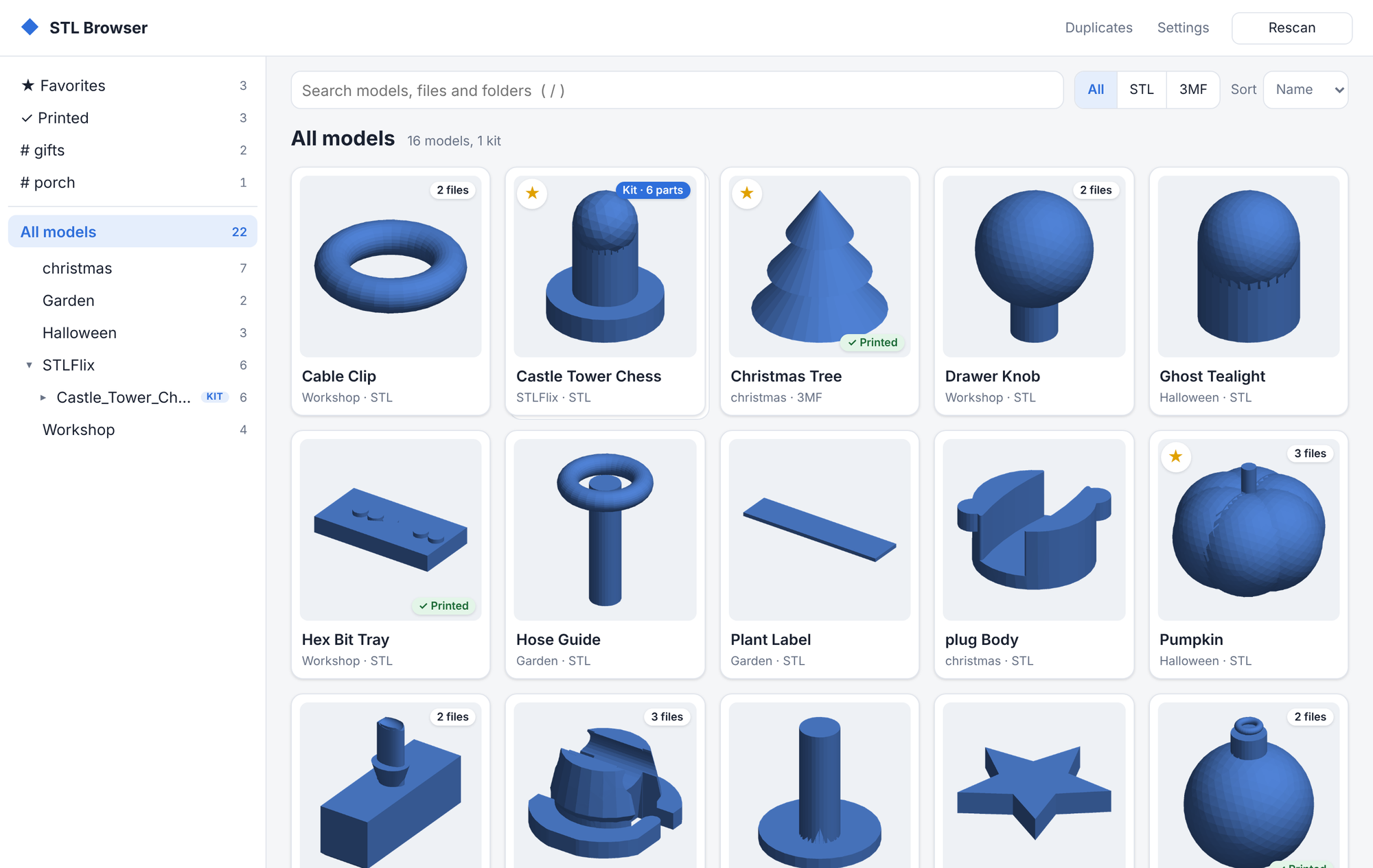
The screenshots in this post use a small demo library (my Christmas folder plus some generated shapes), so the thumbnails are simple. On my real NAS it's 300-plus models.
What's new
- Print notes. Write down how each print went: date, printer, filament, settings, whether it worked, and a photo.
- Print details from 3MF files. Print time, filament per colour, plates, printer and layer height, read from what the slicer saved.
- ZIP downloads. Grab every version of a model, a whole folder, or a whole kit as one ZIP.
- A start/stop script for running it on a PC without Docker.
- Deployed with Portainer on my Docker host, with the NAS mounted read-only.
The model page now tells you how to print it
This is the page I use most, and it picked up two new panels.
Print details, without opening a slicer
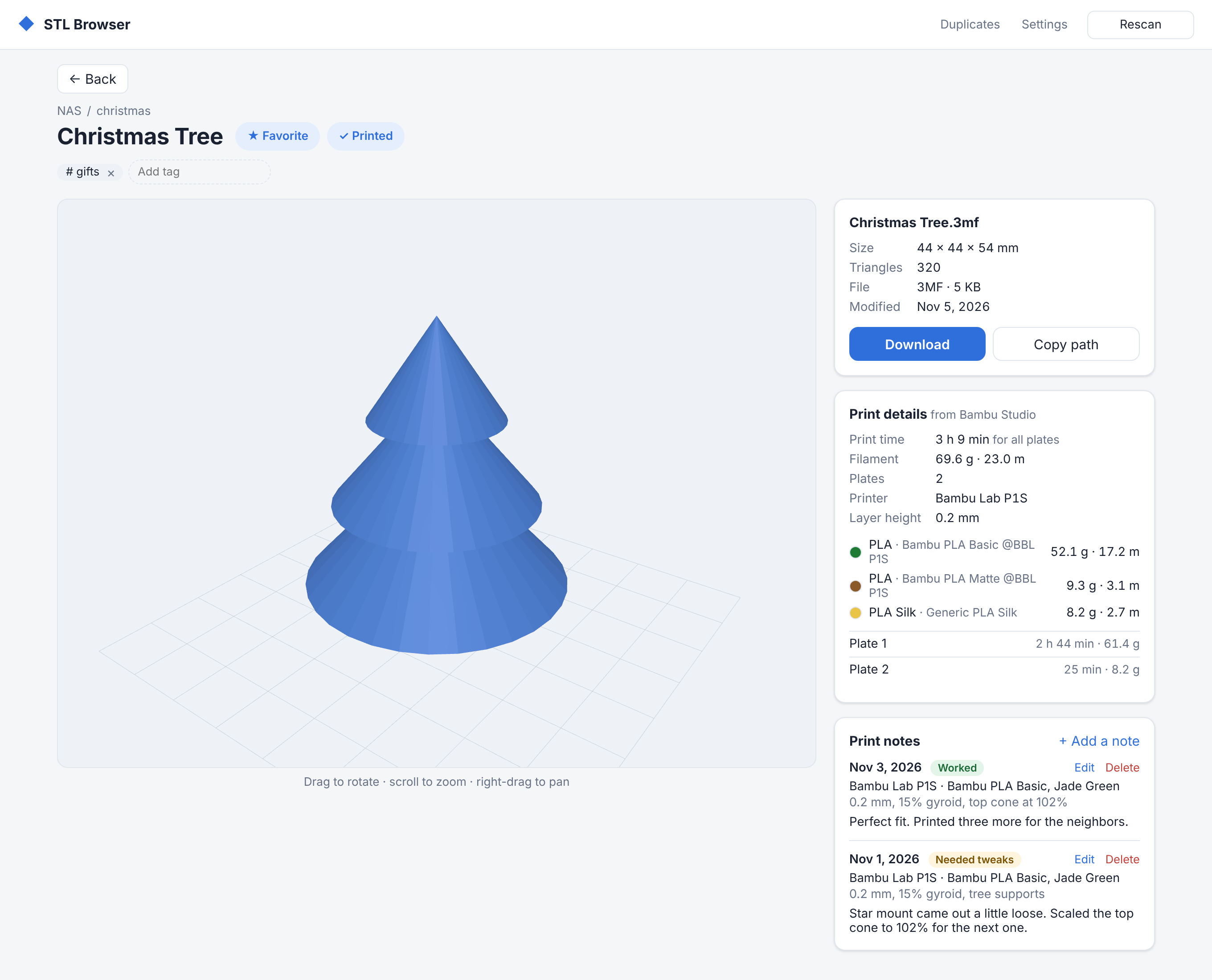
A 3MF is a ZIP, and Bambu Studio, OrcaSlicer and PrusaSlicer all tuck their project settings inside it. If you sliced before saving, Bambu and Orca even store the estimated print time and how many grams of each filament every plate needs. So the app reads those files and shows them next to the 3D view: total time, grams and metres per filament with its colour swatch, the printer, the layer height, and a line per plate.
The important part is what it doesn't read. My first post was mostly about 3MFs with 20 million triangles taking the server down. Print details never touch the mesh. They only open the small settings files under Metadata/ (each capped at 16 MB) and the first 4 KB of the model XML to see which slicer wrote it:
HEAD_BYTES = 4096               # how much of the model XML to read for the slicer's name
MAX_ENTRY_BYTES = 16 << 20      # skip a settings file bigger than this (uncompressed)
BAMBU_SLICE = "Metadata/slice_info.config"
That makes it quick even for the giant files, so the size limits don't apply. The results are worked out during the background pass and cached by the file's fingerprint, so they still show when the NAS is asleep.
Each slicer turned out to save something different, which is where the time went:
- Bambu Studio and OrcaSlicer (and forks like Snapmaker Orca) keep time and filament per plate in
slice_info.config, but only if you sliced before saving. Otherwise the panel still shows the printer, plates and assigned filaments, and says the project isn't sliced yet. - PrusaSlicer never saves time or filament amounts in a 3MF. They only exist in the G-code. It does save the printer, layer height and filaments, and from 2.9 on you can count the beds in a multi-bed project by the distinct
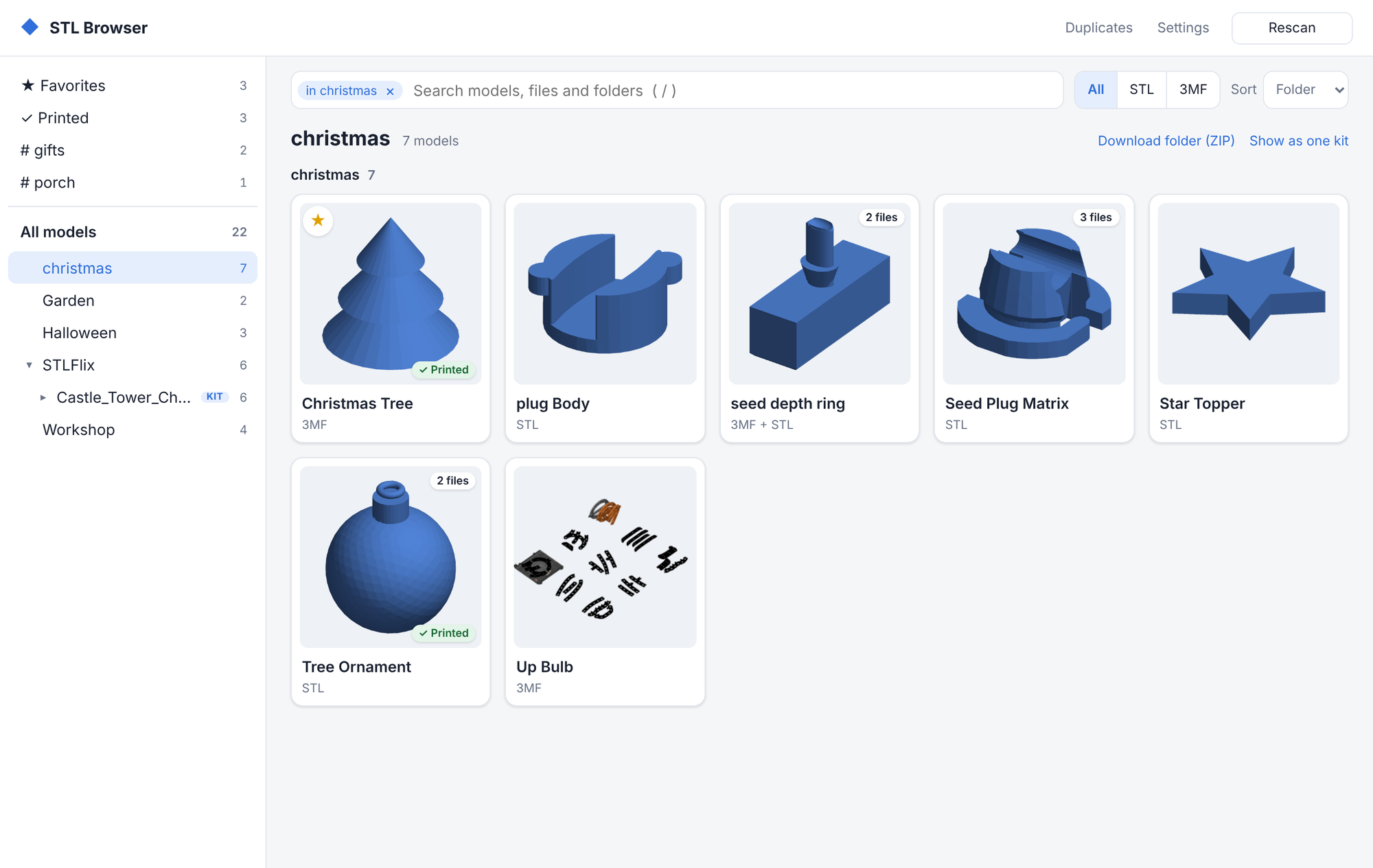
bed_idxvalues in its wipe tower file. MyUp Bulb.3mfcorrectly shows 9 plates for its 3×3 beds. - Cura and plain exported 3MFs have nothing to show, so there's no panel at all.
Print notes
I kept forgetting which settings worked for which model. Now every model page has + Add a note: the date, printer, filament, settings, a result (Worked, Needed tweaks or Failed), free text and an optional photo. Printers and filaments you've used before are suggested as you type, and the printer starts filled in from the model's last note.
Two details I'm happy with. The search box also searches notes, so typing petg finds everything I've printed in PETG. And notes are stored by the model's folder and name rather than by the catalog's row id, in a table that's never dropped, so they survive rescans, catalog rebuilds and app updates the same way tags do. Photos are shrunk to 1600 px and saved again as JPEG, which also strips EXIF data like the GPS location your phone adds.
ZIP downloads for models, folders and kits
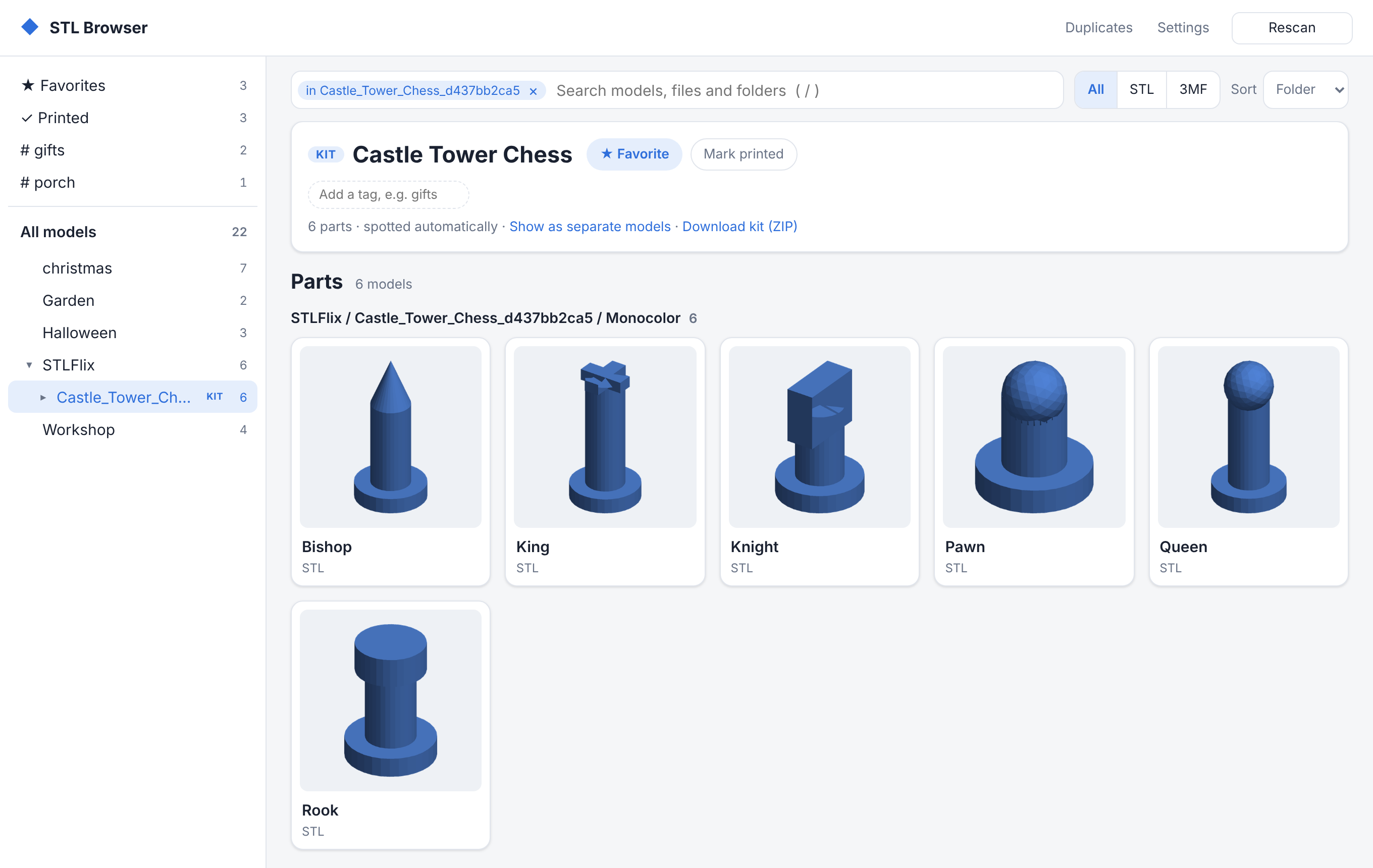
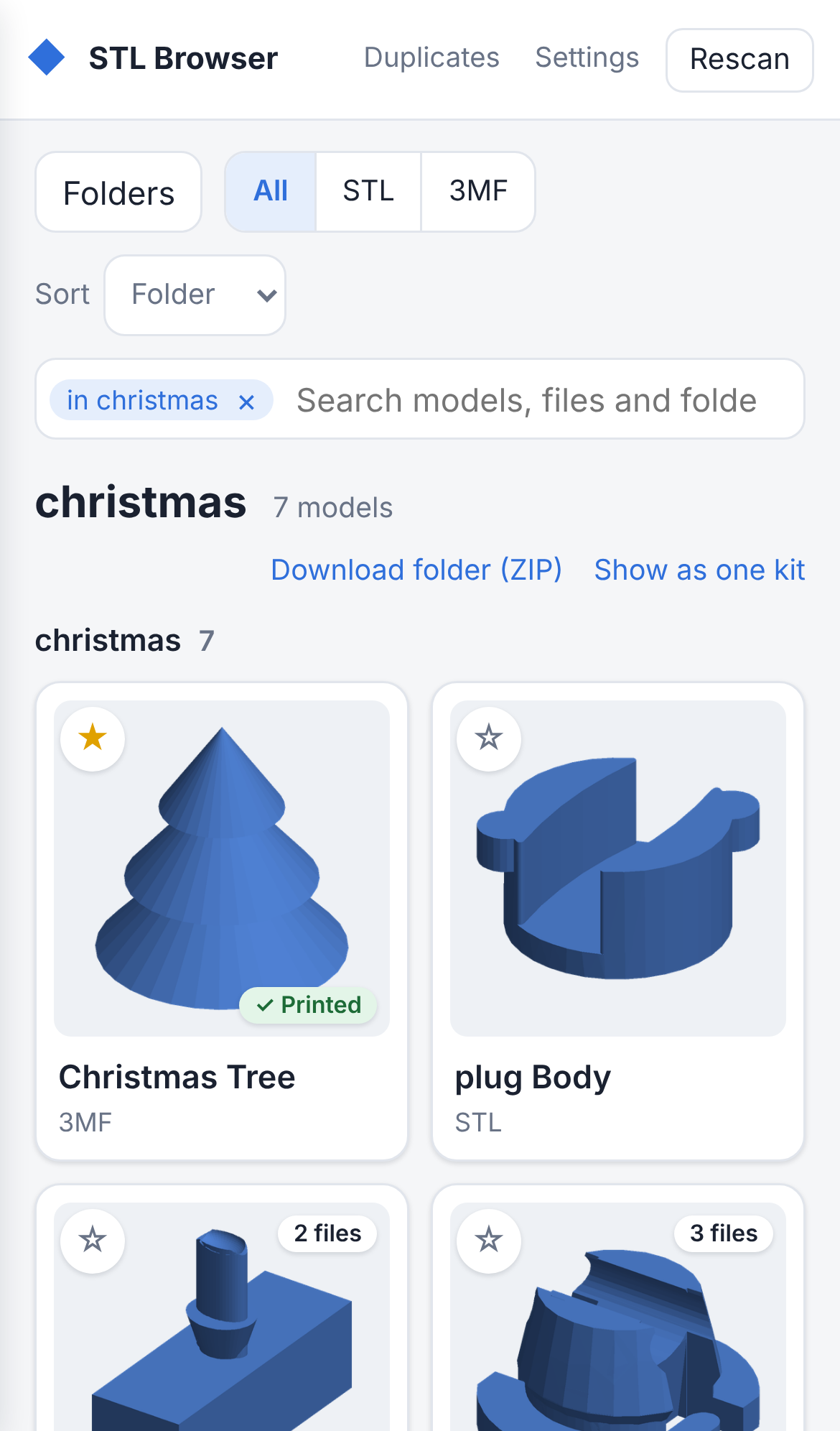
Kits were the last feature in the first post, and the obvious follow-up was downloading one. A chess set is 25 files, and nobody wants to click Download 25 times. Now there's Download kit (ZIP) at the top of a kit, Download folder (ZIP) on any open folder, and Download all (ZIP) on a model with several versions.
The catch is size. A kit can be hundreds of megabytes, and building the whole ZIP in memory (or on disk) before sending it would be slow and wasteful on a small server. Python's zipfile can write to a stream it can't seek in, so the app writes the ZIP into a tiny buffer and hands each piece to the response as soon as it's written:
def stream(entries, note=None):
    """Yield a ZIP holding each (path on disk, name inside the ZIP)."""
    buf = _Buffer()
    with zipfile.ZipFile(buf, "w", allowZip64=True) as zf:
        for path, arcname in entries:
            info = zipfile.ZipInfo.from_file(path, safe_arcname(arcname))
            info.compress_type = zipfile.ZIP_STORED if path.suffix.lower() in _STORED else zipfile.ZIP_DEFLATED
            with open(path, "rb") as src, zf.open(info, "w", force_zip64=info.file_size >= _ZIP64_FROM) as dst:
                while chunk := src.read(CHUNK):
                    dst.write(chunk)
                    if data := buf.take():
                        yield data
        ...
    yield buf.take()
The download starts right away, and memory use stays flat: about 20 MB for a 400 MB file in testing. 3MF files go in uncompressed, since they're already ZIPs and compressing them again just burns CPU. Only files that are in the catalog and inside your library folders can end up in a ZIP, names are cleaned so nothing unpacks outside the folder you unpack into, and any file that can't be read at that moment is listed in a README.txt inside the ZIP instead of silently missing.
Still works on a phone
I mostly browse from the couch, so every new link and panel had to fit on a phone too.
Running it: a script for PCs, Portainer for the server
For running it on a PC without Docker, there's now one script, stl-browser.bat on Windows and stl-browser.sh on macOS and Linux, both calling the same small Python manager:
stl-browser start     # runs in the background and opens http://localhost:8000
stl-browser stop
stl-browser status    # also: restart, logs, run (in the current window)
But the real goal was to stop running it on my laptop. It now lives on my Docker host, managed by Portainer as a stack. A few things I'd do the same way again:
- The NAS login lives in Portainer's stack variables, not in the compose file or the repo. The compose file only has
${NAS_USER}and${NAS_PASSWORD}, and the share is mounted into the container over SMB, read-only. - The data folder is a plain folder on the host, not a hidden Docker volume. The catalog can always be rebuilt from the files, but tags, kits, print notes and their photos can't, so that folder is what gets backed up.
- The image is built once and loaded, rather than having Portainer build from git. That keeps the server free of a Node toolchain. Updating means building a new image, loading it, and recreating the stack. Everything in the data folder carries over.
The "open in slicer" buttons still hide themselves in the Docker version, because a container can't start programs on your desktop. Everything else works the same from any browser in the house.
Working with an AI pair programmer, round two
- Read the format, then the files. For print details, the useful work was opening real 3MFs from each slicer and writing down what's actually in them. The tests use small synthetic 3MFs that copy those layouts, so they run in seconds.
- Keep the boring promises. The app never writes to the model folders, and that rule shaped every feature here: notes and photos live in the data folder, and ZIPs are built on the fly instead of being cached next to the models.
- Docs and tests with every step. Each feature came with its changelog entry, user guide section and tests. There are 44 tests now, up from 31.
Get the code
Code available soon